Updates & log out
How HypeStream updates itself, and what logging out does.
Updates
HypeStream downloads updates by itself in the background. You don't need to reinstall anything.
- While an update downloads, a small progress ring appears near the bottom of the left bar.
- When it's ready, a Restart to update button (an arrow in a circle) appears with a pulsing dot.
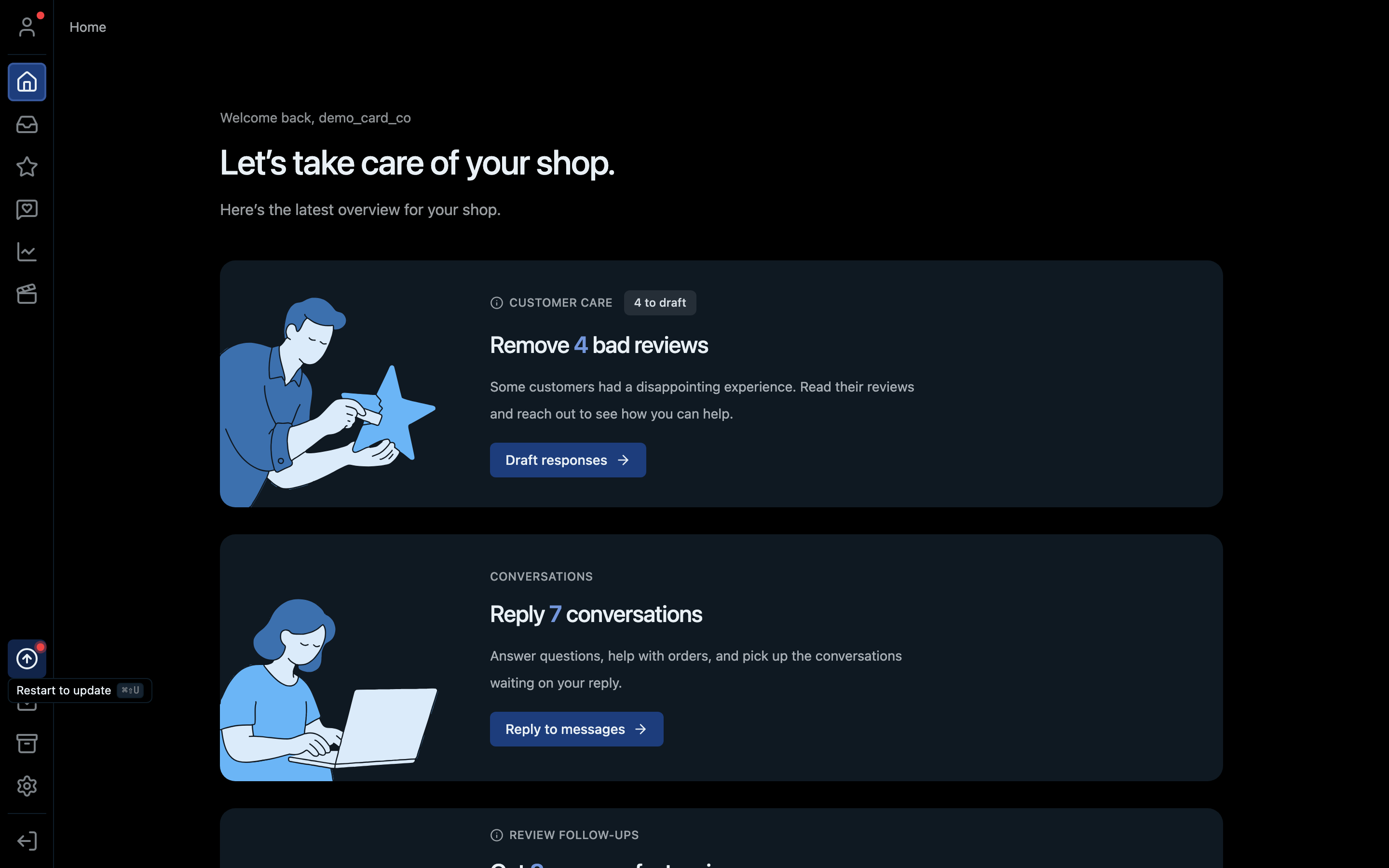
- 1Restart to update. The red dot means an update is ready.
Click it and confirm with Restart. The app closes and reopens on the new version within a few seconds. Pick a moment when you're not live. Or ignore it, and the update installs the next time you quit the app.
Shortcut: ⌘⇧U on Mac, Ctrl+Shift+U on Windows.
Log out
The log out icon at the very bottom of the left bar disconnects HypeStream from Whatnot on this computer.
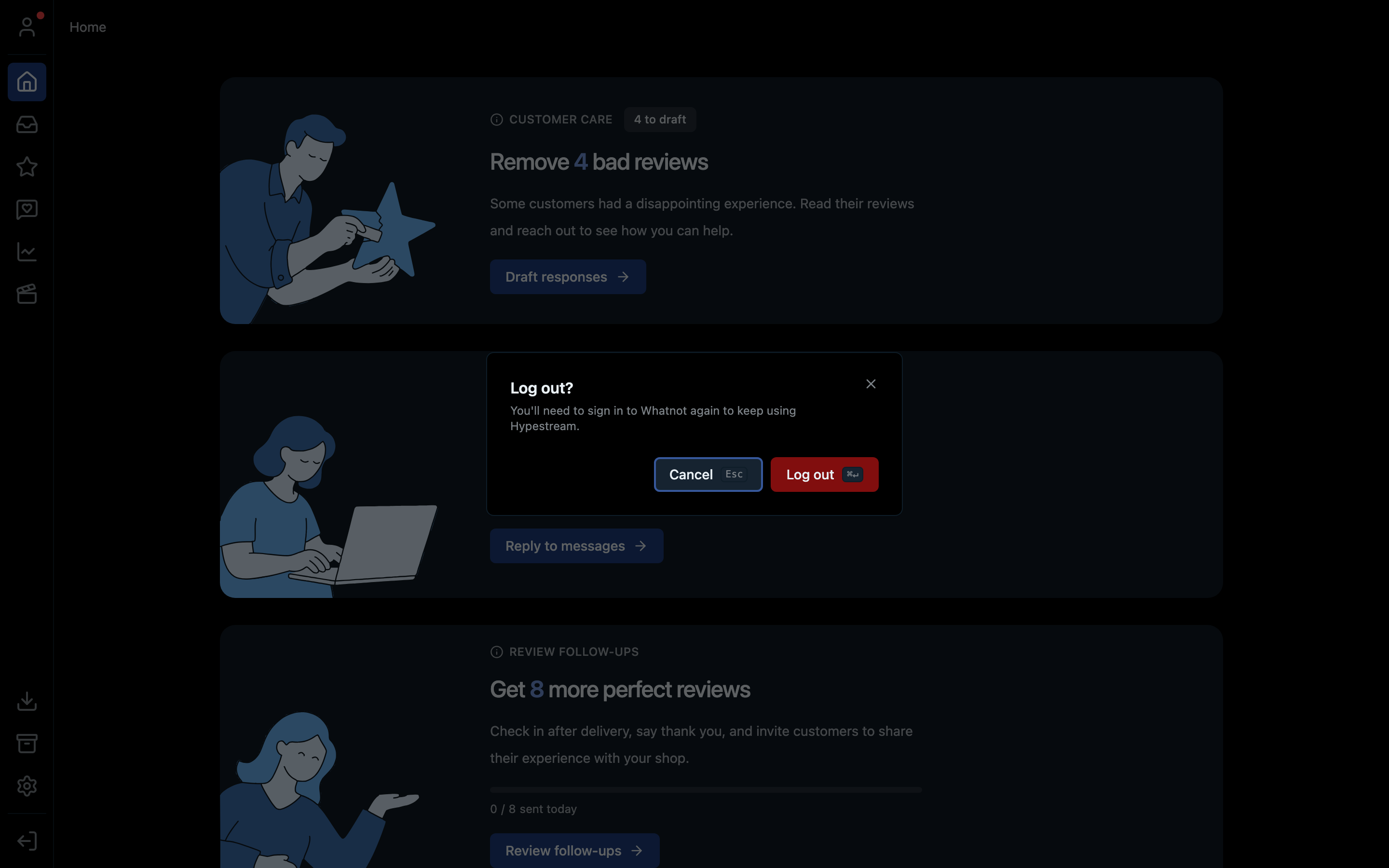
- 1The log out icon
- 2Confirm
You'll need to sign in to Whatnot again to use the app. Your recordings and exported clips stay on your computer.
Shortcut: ⌘⇧L on Mac, Ctrl+Shift+L on Windows.