Recordings
Record every show in HD automatically, find the moments where chat went wild, and export clean clips.
HypeStream records your Whatnot shows in HD while they're live, with no Whatnot overlays on the video. Afterwards it shows you every auction, Buy It Now sale, giveaway and chat spike, so you can jump straight to the good parts and save them as clips.
Turning recording on
- Click the clapperboard icon in the left bar.
- Pick your account in the seller picker.
- Tick Record shows.
From then on every show on that account is recorded. Your computer must be on, with HypeStream open, while you're live, and have at least 10 GB of free space. You can also change this under Settings → Recording watchlist.
The show list
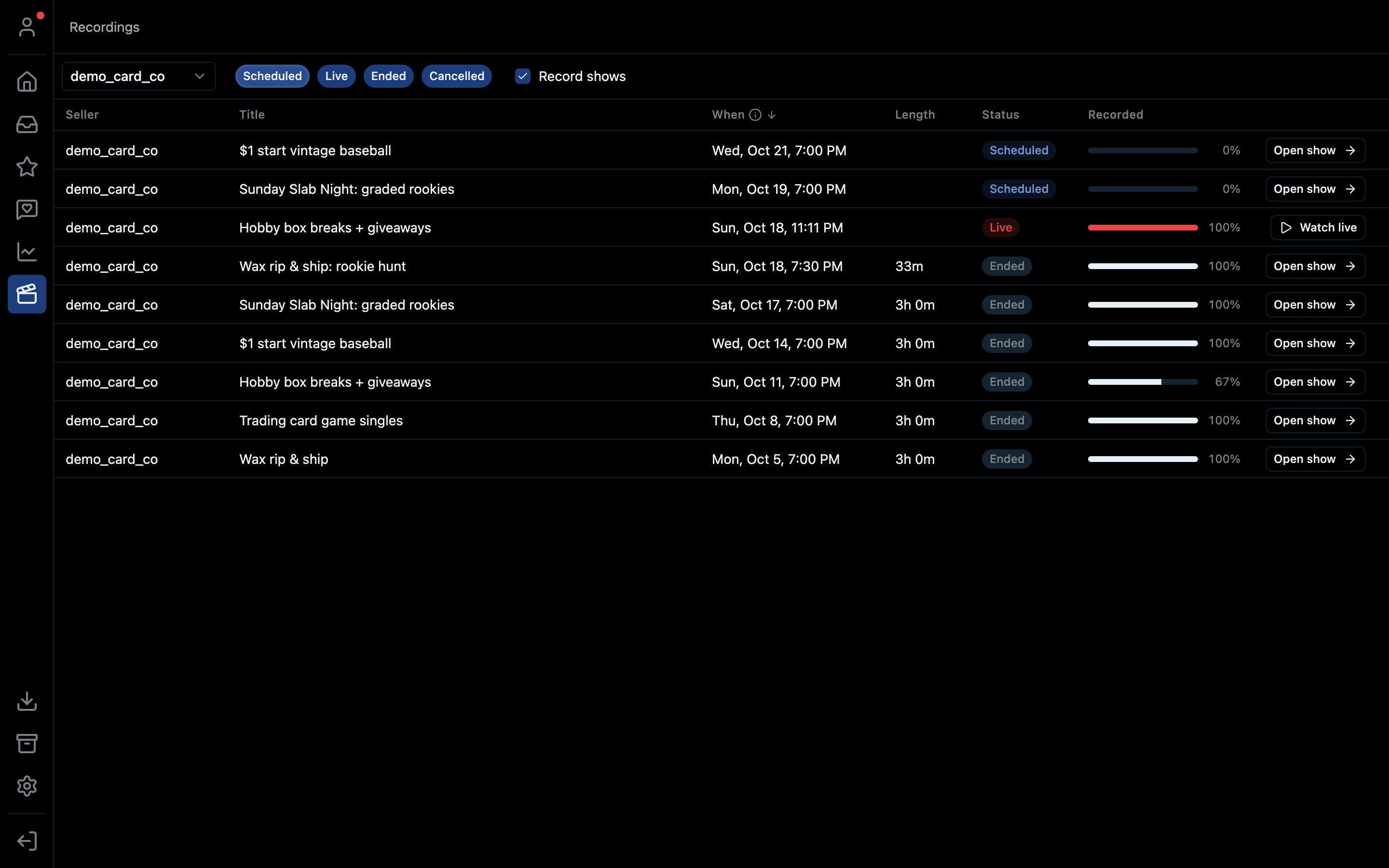
- 1Pick the account
- 2Filter by status
- 3Record this account's shows
- 4Watch a show that's live right now
- 5Open a recorded show
- 6How much was captured: 67% means part of the show is missing
| Column | What it means |
|---|---|
| Title | The show's name on Whatnot |
| When | The start time once the show has played, or the scheduled time until then |
| Length | How long the show ran |
| Status | Scheduled, Live, Ended or Cancelled. Use the chips at the top to filter. |
| Recorded | A bar showing how much of the show was captured. A gap means the app was closed or the computer was off. |
Click Open show to watch a recording, or Watch live while a show is still running.
Watching a show back
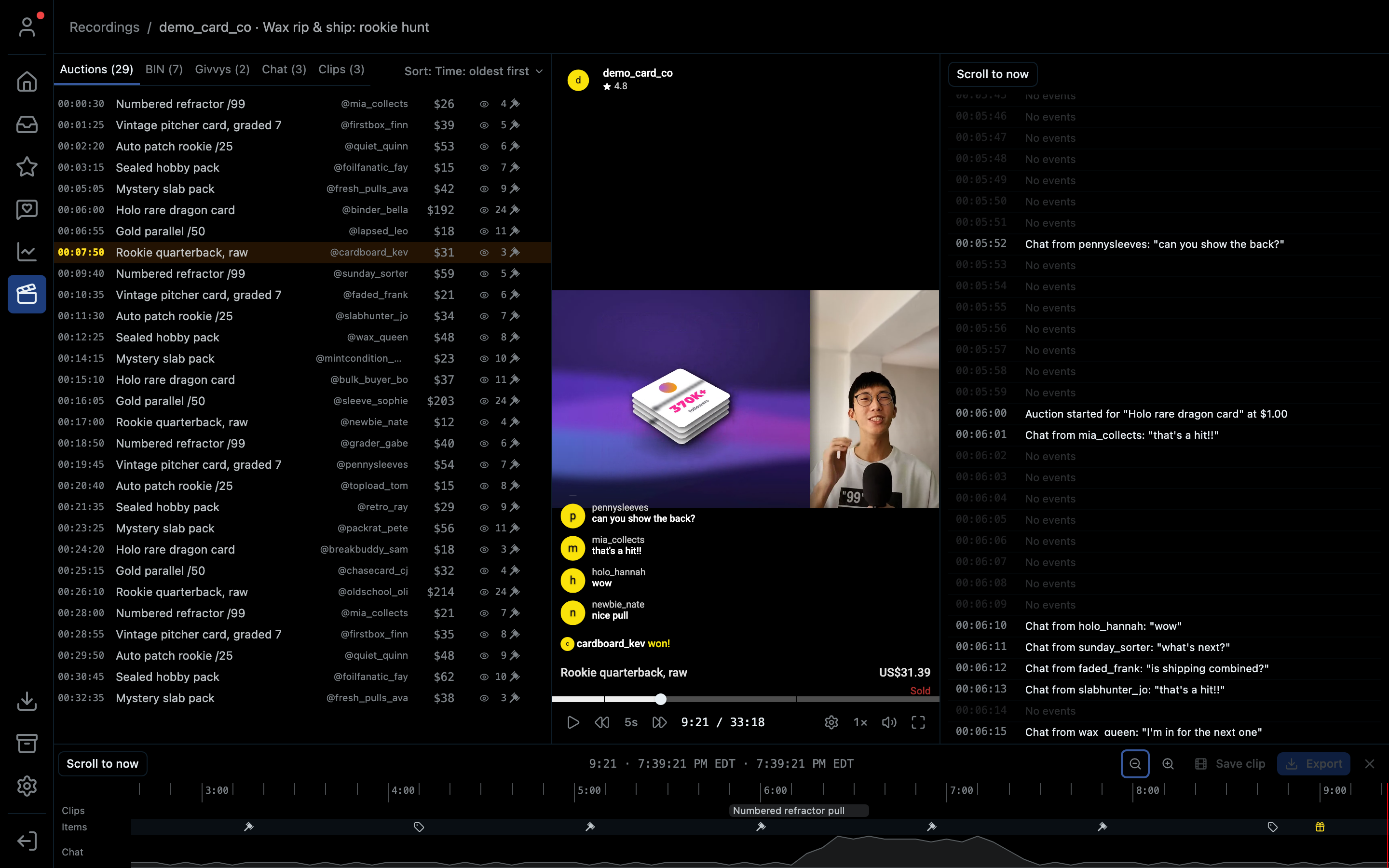
- 1Auctions, Buy It Nows, giveaways, chat spikes and your clips
- 2Sort the list
- 3The recording, with the Whatnot-style overlay
- 4Everything that happened, second by second
- 5Save the selected range as a clip
- 6Timeline lanes: clips, items and chat activity
- The side panel has tabs for Auctions, BIN, Givvys (giveaways), Chat and Clips, with a count on each. Every row shows the time, the item, who won it, the price and how many people bid. Click a row to jump the video there.
- The timeline under the video has lanes for Clips, Items and Chat, so you can see where the action was. Zoom in and out with the magnifier buttons.
- The event log on the right lists every bid, sale and chat message with its exact time.
- Chat finds hype moments: stretches where far more people were chatting than usual, e.g. "3× more chatters than usual".
- Sort a list by time, velocity, price or entrants to find your best moments fast.
Hover any player button to see its keyboard shortcut. Keys 1–4 change how far the skip buttons jump.
Saving a clip
- Find a moment: an auction, a sale, a giveaway or a chat spike.
- Select it in the side panel, or drag a range on the timeline under the video.
- Click Save clip.
- Give it a title and description. Reorder or delete clips in the Clips tab.
Exporting a clip
Click Export on a clip.
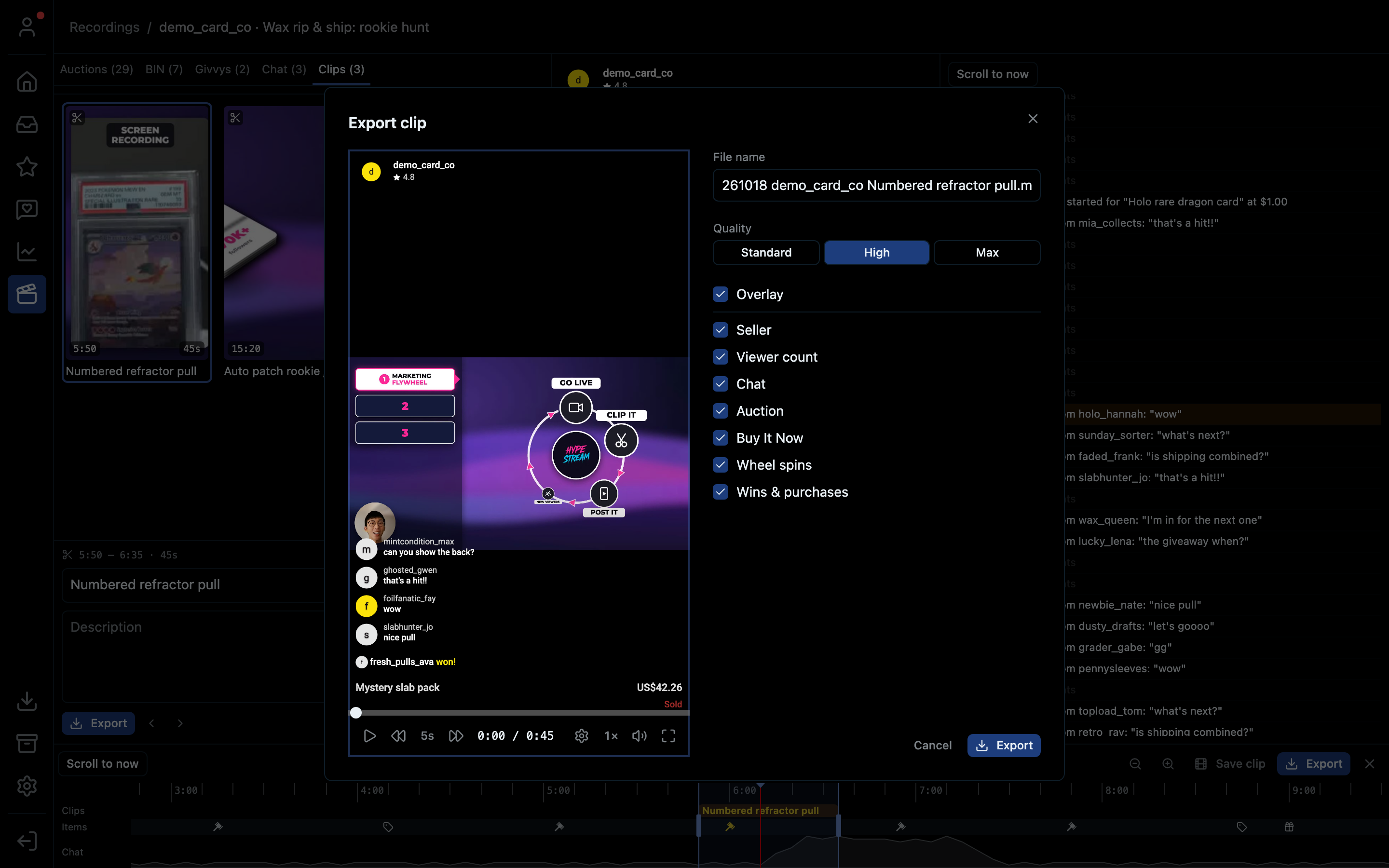
- 1Name the file
- 2Pick the quality
- 3Choose which parts of the overlay to keep
- 4Preview exactly what you'll get
- 5Export
| Setting | Options |
|---|---|
| File name | Anything you like |
| Quality | Standard, High or Max |
| Overlay | Turn it off for clean footage, or keep any of: Seller, Viewer count, Chat, Auction, Buy It Now, Wheel spins, Wins & purchases |
Your quality and overlay choices are remembered for next time. Finished exports appear in Downloads.
Shortcut
⌘7 on Mac, Ctrl+7 on Windows.