Customer breakdown
See which buyers are your best, which are slipping away, and exactly what to send to win them back.
Customer breakdown looks at every buyer's orders and tells you who they are to your shop: a regular, a big spender, someone who's drifting away. Then it suggests what to do about it.
It uses a method online shops have used for years called RFM, short for Recency, Frequency, Monetary: when they last bought, how often they buy, and how much they spend.
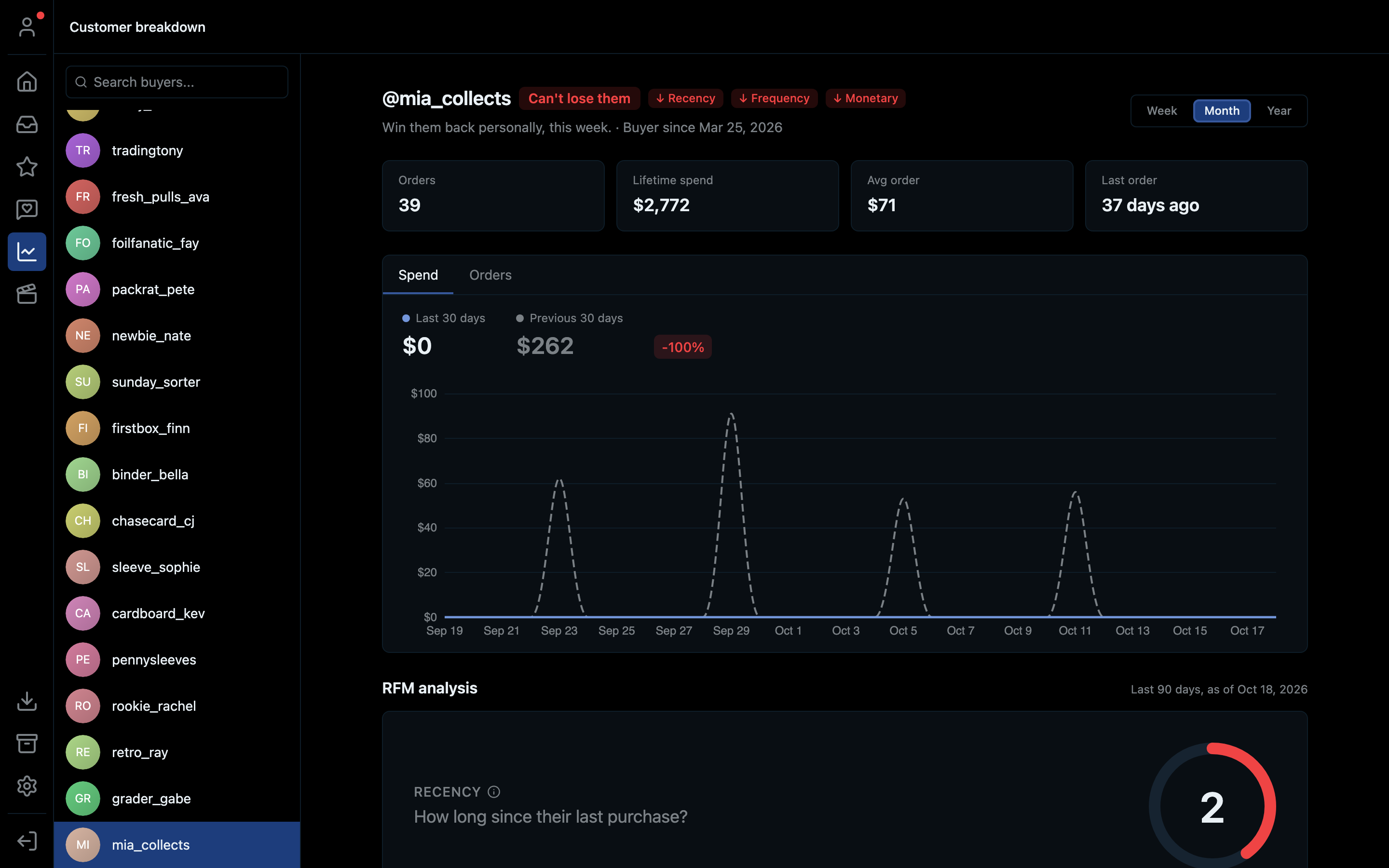
- 1Search your buyers
- 2Their segment, with one line of advice under it
- 3Which scores are falling (↓) or rising (↑)
- 4Compare this week, month or year with the one before
- 5Orders, lifetime spend, average order, last order
- 6Switch the chart between spend and orders
- 7The three RFM scores start here
Finding a buyer
- Click the line chart icon in the left bar.
- Your recent buyers are listed on the left. Type in Search buyers... to find one.
- Click a buyer to see their breakdown.
Reading the top of the page
- @username and a segment badge (what kind of buyer they are, see below), with one line of advice.
- Orders, Lifetime spend, Avg order, Last order: the plain numbers.
- A chart of their spend or orders. Switch between Week, Month and Year to compare this period with the one before, e.g. "Last 7 days" against "Previous 7 days".
The three scores
Each buyer gets a score from 1 (low) to 5 (high) on each letter. Scores use their last 90 days.
| Score | Recency: days since last order | Frequency: orders per month | Monetary: spend per month (items only, not shipping) |
|---|---|---|---|
| 5 | 7 days or less | 4 or more | $300 or more |
| 4 | 14 days or less | 2 or more | $150 or more |
| 3 | 30 days or less | 1 or more | $75 or more |
| 2 | 60 days or less | about 1 every 3 months | $25 or more |
| 1 | longer | less | less |
Each score's card says what it means in plain words ("Bought this week. Keep them warm.", "Over a month since they bought.") and whether it's rising or falling compared with the previous period.
The segments
The scores combine into one label. The app checks them in this order and uses the first that fits:
| Segment | Who they are | What the app suggests |
|---|---|---|
| New | First order in the last 30 days | Welcome them and win the second order. |
| Champion | Bought recently, buys often, spends a lot | Reward them. No discount needed. |
| Can't lose them | Used to buy often and spend a lot, but hasn't bought in a while | Win them back personally, this week. |
| At risk | Decent buyer who's gone quiet | Reconnect with a personal message. |
| Loyal | Buys regularly at a good level | Upsell, and ask for a review. |
| Potential loyalist | Bought recently but not much yet | Give them a reason to come to every show. |
| About to sleep | Starting to go quiet | Nudge them before they drift off. |
| Lost | Long gone, small spend | Low priority. A broad offer at most. |
Champions and Can't lose them are worth your personal attention. Losing one hurts more than gaining a new buyer helps.
Winning a buyer back
When a score is falling, its card opens a list of suggestions, such as How to win them back or How to grow their basket again. Many come with a ready-made message you can copy.
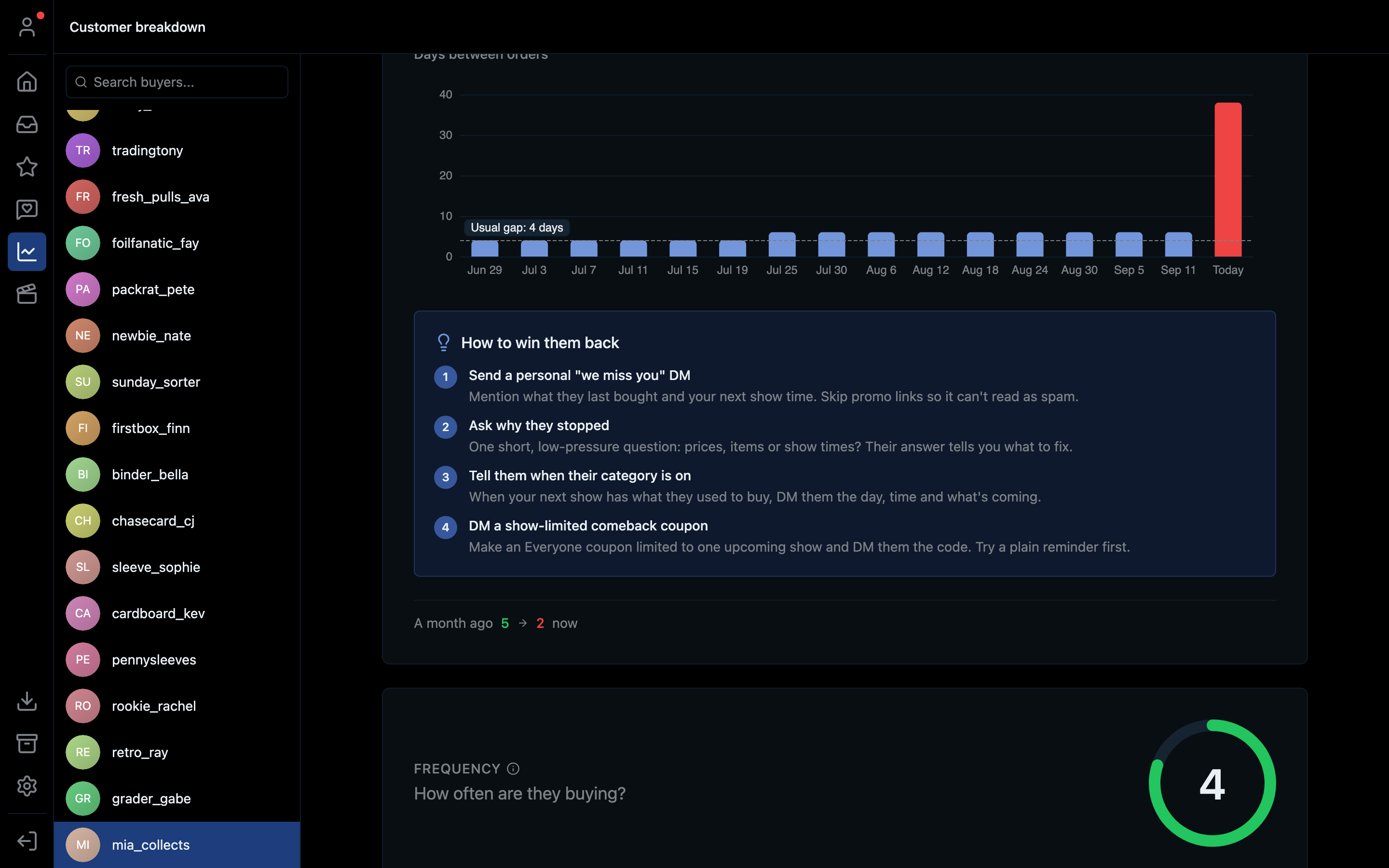
- 1Days between their orders. The red bar is how long it's been since the last one.
- 2Their usual gap between orders
- 3What to do about it
- 4How the score changed: 5 a month ago, 2 now
Examples of what you'll see:
- Send a personal "we miss you" DM. Mention what they last bought and your next show time. Skip promo links so it can't read as spam.
- Ask why they stopped. One short question: prices, items or show times?
- Tell them when their category is on. If the next show has what they used to buy, DM them the day and time.
- Fix any recent order problems first. Check their orders and support requests before asking for more.
Small print the cards point out
- "N× their usual gap": they're overdue compared with how often they normally buy.
- "One order is X% of this. Don't read too much into it.": one big order is skewing their numbers.
- "They stopped buying …": a category they used to buy from you and haven't lately.
Shortcut
⌘6 on Mac, Ctrl+6 on Windows.