Request reviews
Ask buyers whose order just arrived for a review, at the moment they're most likely to leave 5 stars.
Happy buyers rarely leave a review unless someone asks. Request reviews sends a short thank-you to buyers whose order just arrived and invites them to share how it went.
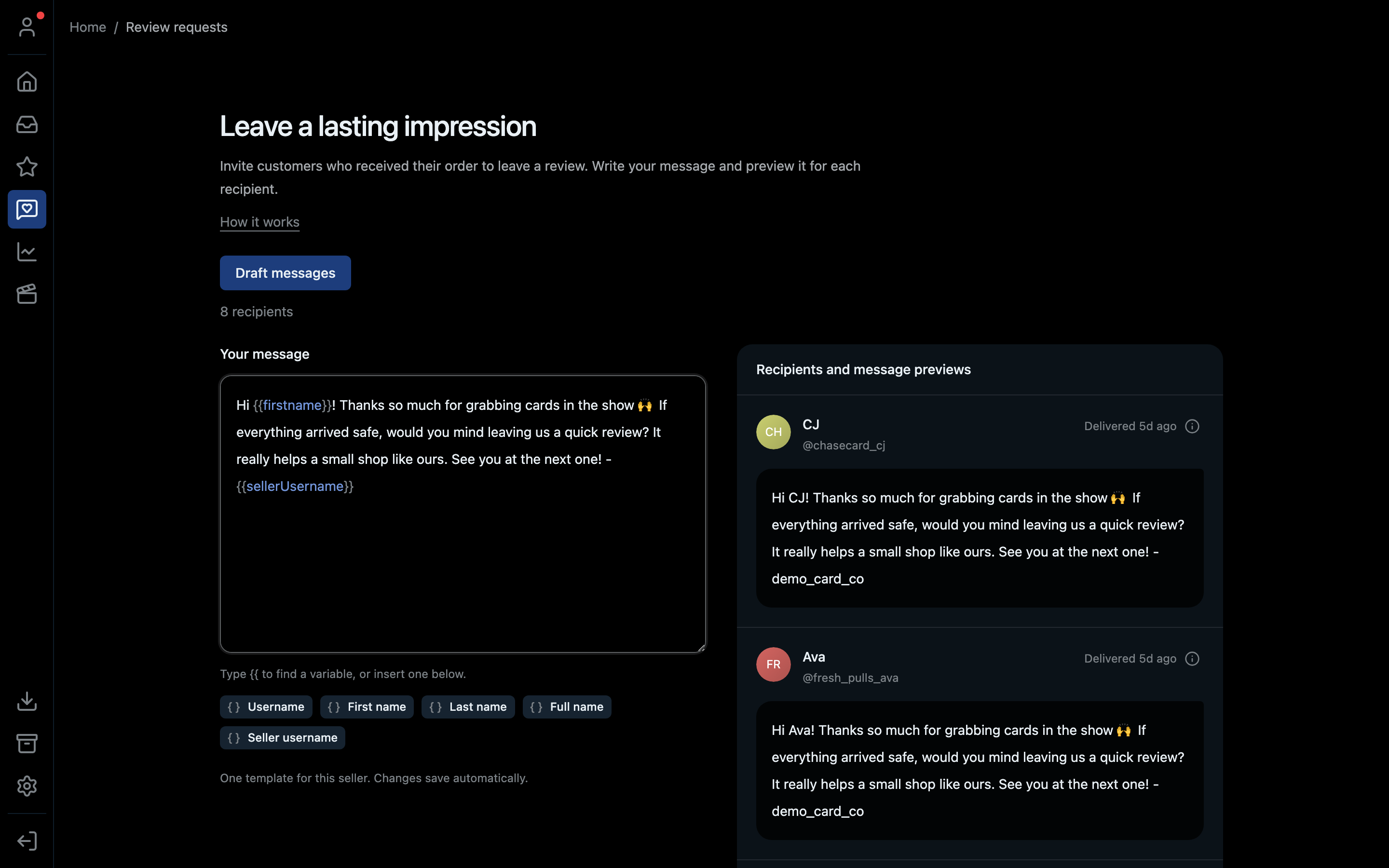
- 1Draft a message for every recipient
- 2How many buyers are due a request
- 3Your message, written once for this seller
- 4Insert the buyer's name and other details
- 5Exactly what each buyer will get
Who gets asked
Buyers whose shipment was delivered 3–7 days ago and who haven't reviewed you in the past 30 days.
- Not before 3 days: Whatnot already asks for a review when the package arrives. Waiting avoids a second prompt straight away.
- Not after 7 days: by then people have moved on and are less likely to answer.
Up to 50 requests a day.
How it works
- Click the speech bubble with a heart icon in the left bar.
- Write your message under Your message. There's one template per seller account, and changes save by themselves.
- Add personal details with the buttons under the box (Username, First name, Last name, Full name, Seller username), or type
{{to pick one. The previews on the right show exactly what each buyer will get. - Click Draft messages. The drafts open in their own inbox:
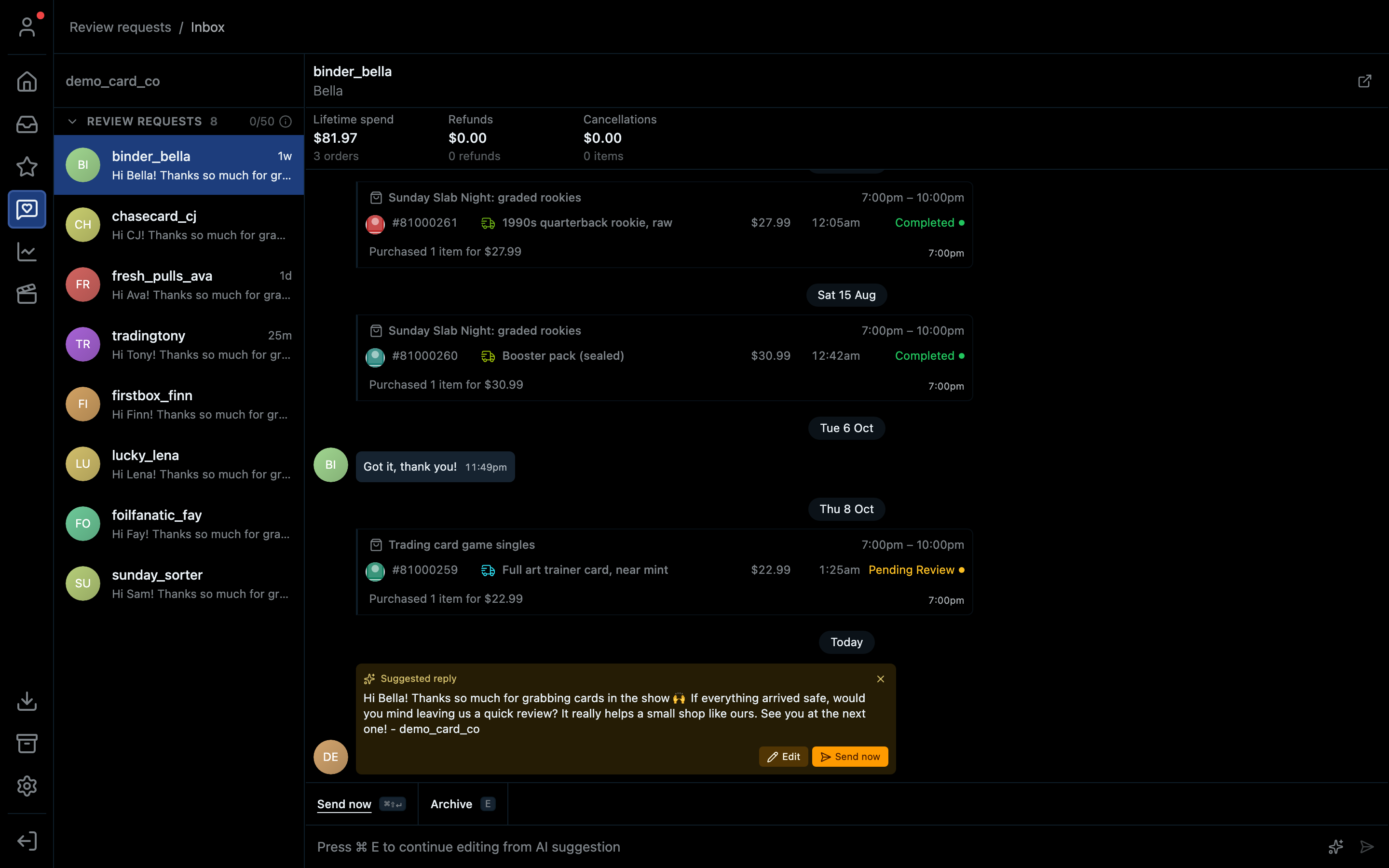
- 1How many you've sent today, out of 50
- 2Every buyer with a drafted request
- 3The drafted message: Edit it or Send now
- Go through them and click Send now on each one (⌘⇧Enter / Ctrl+Shift+Enter). Click Edit to change one first.
Writing a good request
- Thank them for what they bought.
- Keep it to two or three sentences.
- Ask for an honest review. Don't ask for 5 stars.
- No links, no promo codes. It should read like a note from you, not an ad.
The delivery time shown is approximate. It's usually within 30 minutes of the real delivery, and always after it.
Shortcut
⌘5 on Mac, Ctrl+5 on Windows.