Settings
Teach the AI your shop's answers, and choose which accounts' shows get recorded.
Settings has two pages, picked from the tabs at the top: Q&A settings and Recording watchlist. The app's version number is shown in the header, which is handy if support asks for it.
Q&A settings
These are the answers the AI uses when it drafts replies in your inbox. The app writes a first set for you during setup by reading how you've replied to buyers before. You can change them any time.
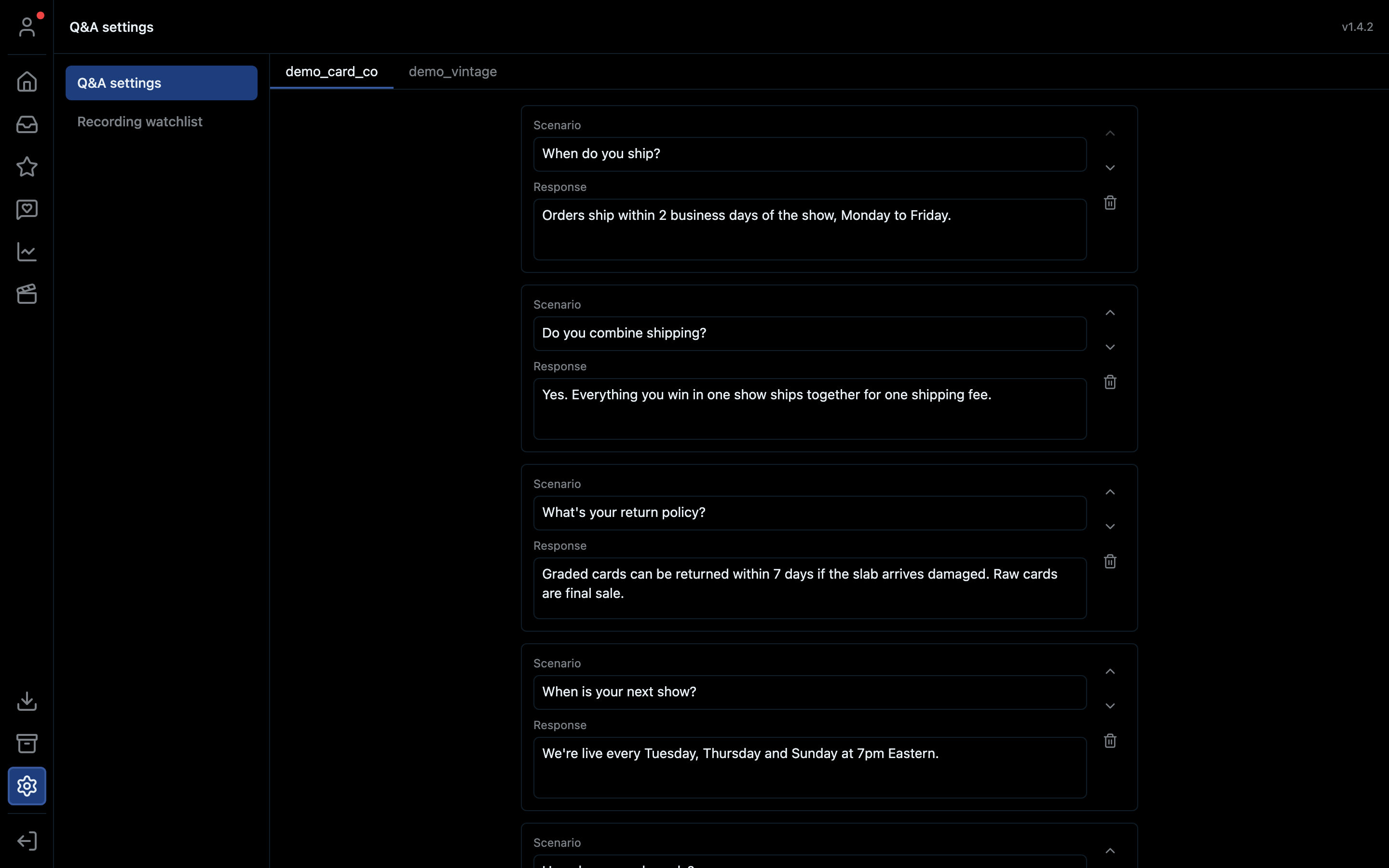
- 1The gear icon
- 2Q&A settings
- 3One tab per seller account
- 4The situation
- 5How you'd answer it
- 6Move it up or down, or delete it
- 7The app's version
Each entry has two parts:
| Field | Example |
|---|---|
| Scenario | A buyer asks when their order will ship |
| Response | We ship within 2 business days of the show. You'll get tracking from Whatnot as soon as it's out. |
- Each seller account has its own tab, because shops often have different policies.
- Use the arrows to move an entry up or down, and the bin to delete it.
- Keep responses in your own voice. The AI copies the tone.
If drafts keep getting something wrong, the fix is almost always a missing or outdated entry here.
Recording watchlist
Which accounts' shows are recorded. See Recordings.
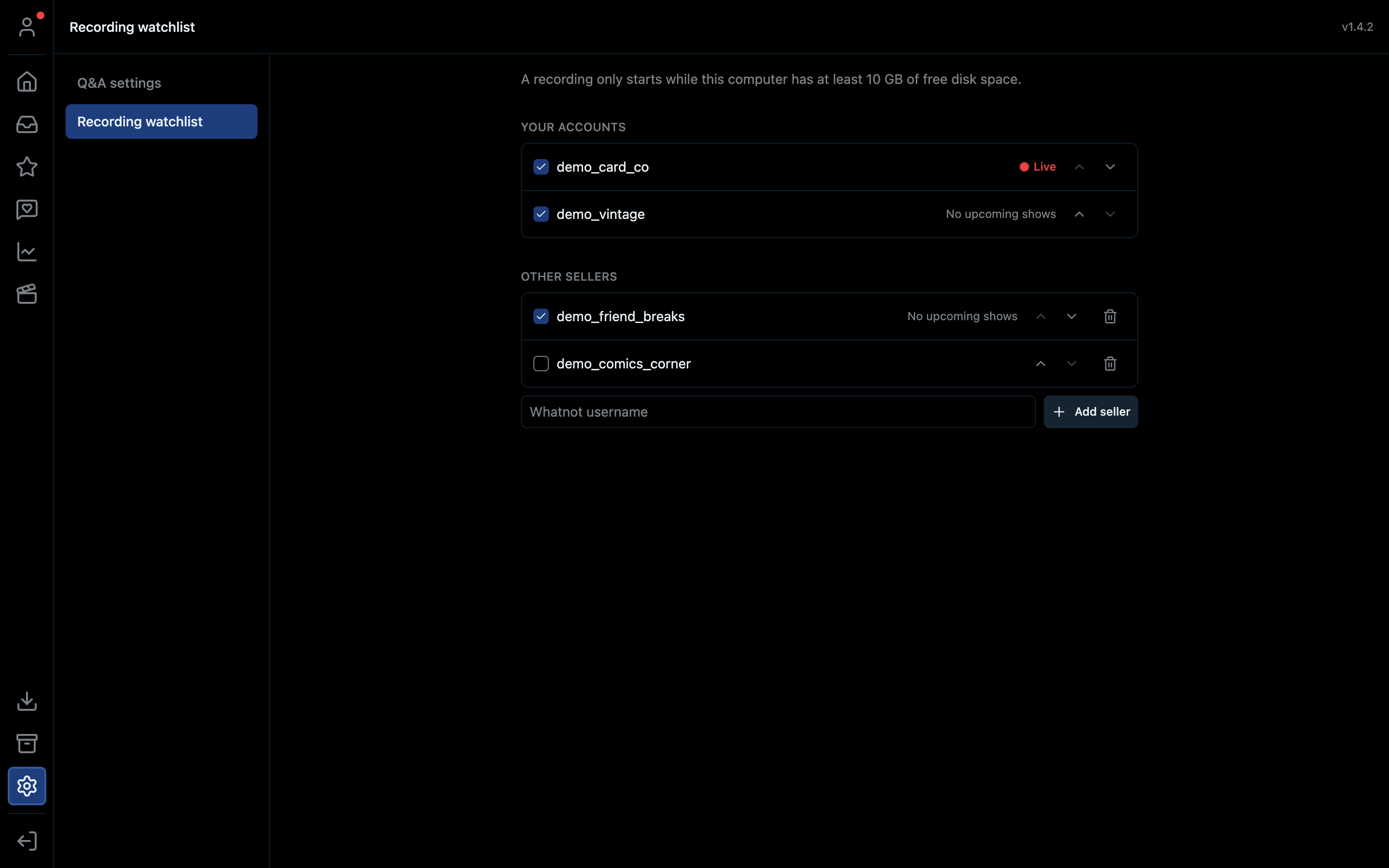
- 1Recording watchlist
- 2Recording needs 10 GB of free space
- 3Tick an account to record its shows. The arrows change the order.
- 4Whether the account is live right now
- Your accounts: tick an account to record its shows, untick to stop. The arrows change the order.
- A recording only starts while your computer has at least 10 GB of free space.
Shortcut
⌘⇧S on Mac, Ctrl+Shift+S on Windows.